 Jonker IT

STEM (Scan to Exchange Mail) sets up scan to email through Microsoft 365 in a few minutes. It configures Exchange Online for your multifunction printer and then tells you exactly what to enter in the scanner: server, port, encryption, sign-in and sender.
Microsoft 365Exchange OnlineDirect SendRelay connectorHigh Volume EmailTLS 1.2 / 1.3Windows 10 & 11
 (Click to enlarge)
 (Click to enlarge)
1How it works: five steps
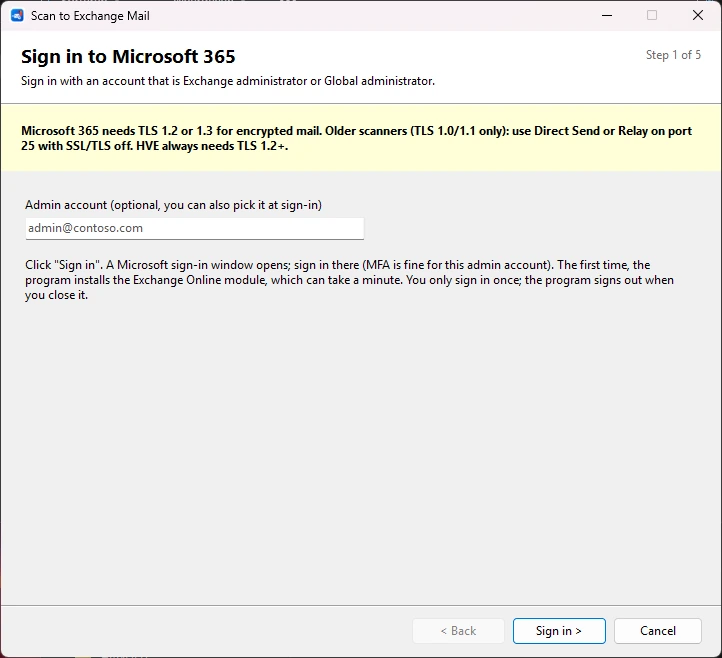
- Sign in to Microsoft 365. Sign in with an Exchange administrator or Global administrator, MFA included. You sign in once; STEM signs out when you close it.
- Choose the domain. STEM lists your organisation’s domains. Pick the domain the scans are sent from.
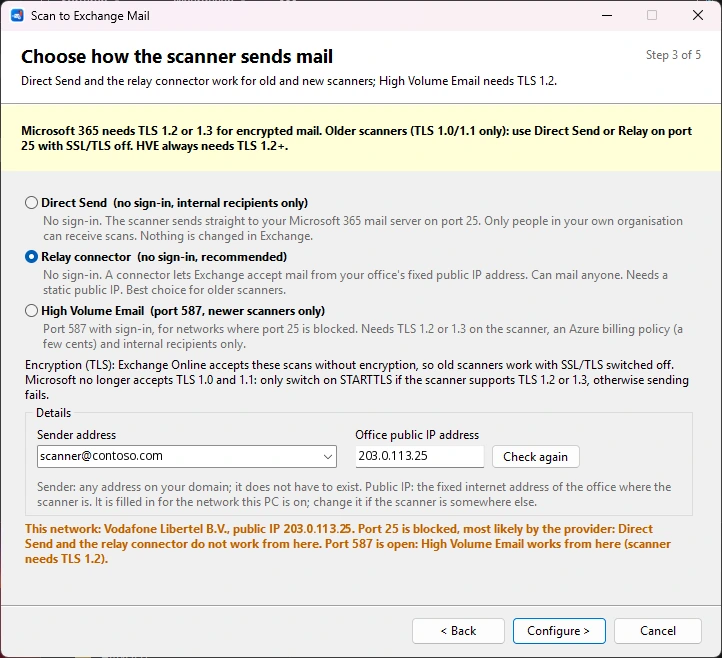
- Choose the method. Direct Send, relay connector or High Volume Email. STEM explains what each choice means and lets you pick the sender from the mailboxes on the domain.
- Configure. STEM applies the settings in Exchange Online, invisibly in the background, and shows what it is doing.
- Instructions for the scanner. Exactly what to enter in the scanner, the complete SPF record for your DNS, what you need to know about TLS, and how to test. For HP printers it shows where to find it in the web interface (EWS). Copy the instructions or save them.
2The three methods
| Method | Port | Encryption | Recipients | Good for |
|---|---|---|---|---|
| Relay connector (recommended) | 25 | Off, or STARTTLS with TLS 1.2/1.3 | Anyone, also outside your organisation | Old and new scanners in an office with a fixed public IP address |
| Direct Send | 25 | Off, or STARTTLS with TLS 1.2/1.3 | Your own organisation only | Old and new scanners; nothing changes in Exchange |
| High Volume Email | 587 | STARTTLS with TLS 1.2 or 1.3, required | Your own organisation only | Newer scanners, also when your provider blocks port 25 |
- Relay connector. STEM creates a connector in Exchange Online that accepts mail from your office’s public IP address, and gives you the complete SPF record with that IP address in it.
- Direct Send. The scanner delivers straight to your Microsoft 365 mail server. STEM checks that Direct Send is allowed in your tenant (Reject Direct Send is off).
- High Volume Email (HVE). STEM creates a dedicated HVE account with a strong password, sets up the authentication policy and links the Azure billing policy. HVE costs a few cents per thousand recipients and works with a password until September 2028.
3TLS and older scanners
Microsoft 365 only accepts encrypted mail with TLS 1.2 or TLS 1.3. Many older scanners only know TLS 1.0 or 1.1. STEM is clear about this, in the main window, when you choose the method and in the instructions:
- Scanner without TLS 1.2: use Direct Send or the relay connector on port 25 and switch SSL/TLS in the scanner off. Exchange Online accepts this mail without encryption.
- Scanner with TLS 1.2 or higher: switch on STARTTLS, or choose High Volume Email. For HVE, STEM first asks whether your scanner supports TLS 1.2.
4Network check and provider
When it starts, STEM looks at the network of the PC. So run STEM in the office where the scanner is.
- Public IP address. STEM fills in the office’s IP address itself, for the connector and the SPF record.
- Provider and port 25. STEM recognises the internet provider and tests whether outgoing traffic on port 25 reaches Microsoft 365. Some providers, such as Ziggo and Odido in the Netherlands, block port 25. STEM tells you straight away.
- Port 587. STEM also tests the High Volume Email server, so you see whether HVE works from this network.
- When nothing works. STEM gives you your own provider’s SMTP server, if it has one (for example Ziggo or KPN), and the other options for an old scanner.
5Safe and transparent
- Nothing without your yes. For High Volume Email, STEM checks your Conditional Access policies and Security Defaults. It asks for each policy whether the HVE account may be excluded, and warns you separately before anything changes in Security Defaults.
- You see what changes. The instructions at the end list what STEM did in Microsoft 365.
- Your DNS stays yours. STEM does not change your DNS, but gives you the complete SPF record: your existing record with your office’s IP address added.
- Only on your own PC. STEM talks directly to Microsoft 365. For the IP address and provider it uses ipinfo.io. No data is sent to us.
6System requirements
| Part | Requirement |
|---|---|
| Operating system | Windows 10 or Windows 11, with Windows PowerShell 5.1 (built in) |
| Microsoft 365 | An account with the Exchange administrator or Global administrator role |
| High Volume Email | An Azure subscription for the billing policy; rights on Conditional Access (Global administrator) |
| PowerShell modules | ExchangeOnlineManagement and, for HVE, Microsoft.Graph.Authentication. STEM installs them itself when they are missing, for your user account only |
| Installation | None: unzip the file and start STEM.exe |
7Download
- For Windows 10 and 11. One program, no installation. Unzip STEM.zip and start STEM.exe.
- Warning from Windows? Windows SmartScreen may warn about a new program. Choose More info and Run anyway.
- The first time, STEM installs the Exchange Online module. That can take a minute.
By downloading STEM you agree to the terms of use: use at your own risk.